
This guide walks through the issues that actually show up in real life, not just the generic list you find everywhere else, plus a few things nobody tells you until you have lived with the device for a while.
Why the Dexcom G6 Receiver Still Matters in 2026
Even with smartphone apps taking over, the dexcom g6 receiver remains the backup option many clinicians recommend, especially for children, hospital patients, or anyone whose phone cannot run the app reliably. That is exactly why understanding Common Dexcom G6 Receiver Problems and Fixes is still relevant, not outdated advice from an older era of CGM tech.
This is the most reported issue among Common Dexcom G6 Receiver Problems and Fixes people search for. Usually the culprit is a worn charging cable or a port with lint stuck inside it.
Try this order: swap the USB cable first, then clean the port gently with a dry toothbrush, then plug into a wall outlet instead of a laptop, since laptop ports sometimes deliver too little current to charge a fully drained battery.
Signal loss happens when the receiver and transmitter are too far apart or something physical is blocking the connection, such as a wall, water, or even a thick winter coat. This warning will notify you that you are not receiving Dexcom G6 measurements due to the fact that your display device is too far away from your transmitter or there is an obstruction, such as walls or water, in between the two devices.
Fix: Keep the receiver within about 20 feet of your body, and avoid storing it in a bag on the opposite side of a room while you sleep.
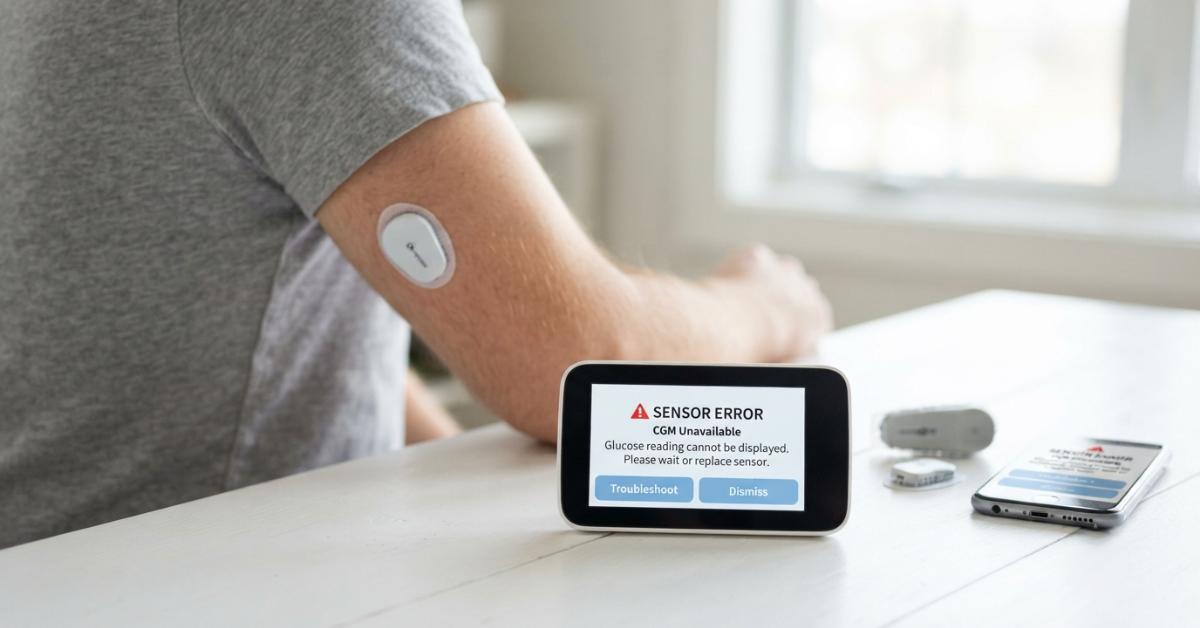
Sensor errors are usually about pressure, not the receiver itself. Something pressing on the sensor can affect Dexcom G6 readings, and once the pressure is relieved, readings should return closer to normal. If a Transmitter Failed message appears instead, it typically means the sensor session has ended or the transmitter has expired, and with the G6 you resolve this by replacing both the sensor and the transmitter.
Pairing failures often trace back to a mistyped serial number. Dexcom added a dash and an extra digit to newer transmitter serial numbers, but only the first six characters need to be entered manually, from left to right. Double check you are not including the extra characters by mistake.
Silent alerts are dangerous, not just annoying. Inaudible alerts can usually be resolved by adjusting sound settings in the receiver or app, turning on alert sounds, and testing different tones to find one that is easier to hear. Check that the receiver is not accidentally in a silent or vibrate-only mode, which is a setting many new users overlook entirely.
A soft reset solves this more often than people expect. Press the power button for at least ten seconds, until the screen turns off, and then let go. This does not erase your sensor session or history.
Before assuming the device is broken, remember the built-in accuracy standard. Readings should fall within 20 percent of a blood glucose meter value when that value is 80 mg/dL or higher, or within 20 mg/dL when the meter value is under 80 mg/dL. Readings can also drift during the first 24 hours while the sensor self-calibrates.
Licensed DME supplier. We verify insurance before your first order and ship fast across the US.
How to Set Up a Dexcom G6 Receiver the Right Way
Before troubleshooting, it helps to confirm setup was done correctly in the first place. Learning how to set up a dexcom g6 receiver properly from day one prevents half of the common complaints above: charge fully before first use, enter the transmitter code exactly as printed, and keep the receiver within range during the two-hour warm-up period.
Dexcom G6 Receiver User Manual Explained
Every troubleshooting path eventually loops back to documentation. The Dexcom G6 Receiver User Manual Explained in plain language means understanding three sections: the status bar icons, the alert threshold menu, and the Stop Sensor function, which permanently ends a session once triggered, so it should never be tapped by accident.
Trusted Reference Table
| Source | What It Covers | Link |
|---|---|---|
| Dexcom Official Troubleshooting | Official fixes for signal, sensor, and pairing issues | dexcom.com/en-us/faqs/g6/troubleshooting |
| Dexcom G6 User Guide (PDF) | Full manual with alert explanations and setup steps | G6-CGM-Users-Guide.pdf |
| Dexcom Support | 24/7 phone support | 443 659 9484 |
| FDA Medical Device Database | Regulatory information on CGM systems | fda.gov |
| American Diabetes Association | General CGM usage guidance | diabetes.org |
When to Actually Call Support
If none of the Common Dexcom G6 Receiver Problems and Fixes above resolve your issue within a few hours, stop troubleshooting and call Dexcom directly rather than guessing further, especially if you are relying on the device for real-time treatment decisions.
Most Common Dexcom G6 Receiver Problems and Fixes come down to distance, charging, or a small setup mistake. Keep the receiver charged, stay within range, and revisit the manual occasionally, since a five-minute check usually beats an hour of guessing.
This article is for informational purposes only and does not replace guidance from your healthcare provider or Dexcom's official support team.